Guide
MacBook running hot and fans loud: 10 causes and how to fix each
A MacBook that gets hot and loud is almost always doing more work than you think, not failing. The fix is usually in software, and finding it takes two minutes. Here is how to diagnose it, then the ten most common causes in the order you should check them.
First: find out what is actually using the CPU
- Open Activity Monitor (Applications → Utilities, or search for it with Spotlight).
- Click the CPU tab and click the % CPU column header so the biggest consumers are on top.
- Watch it for 30 seconds. Anything sitting above 50% while you are not using it is your suspect.
Then check whether macOS is throttling. In Terminal:
pmset -g therm
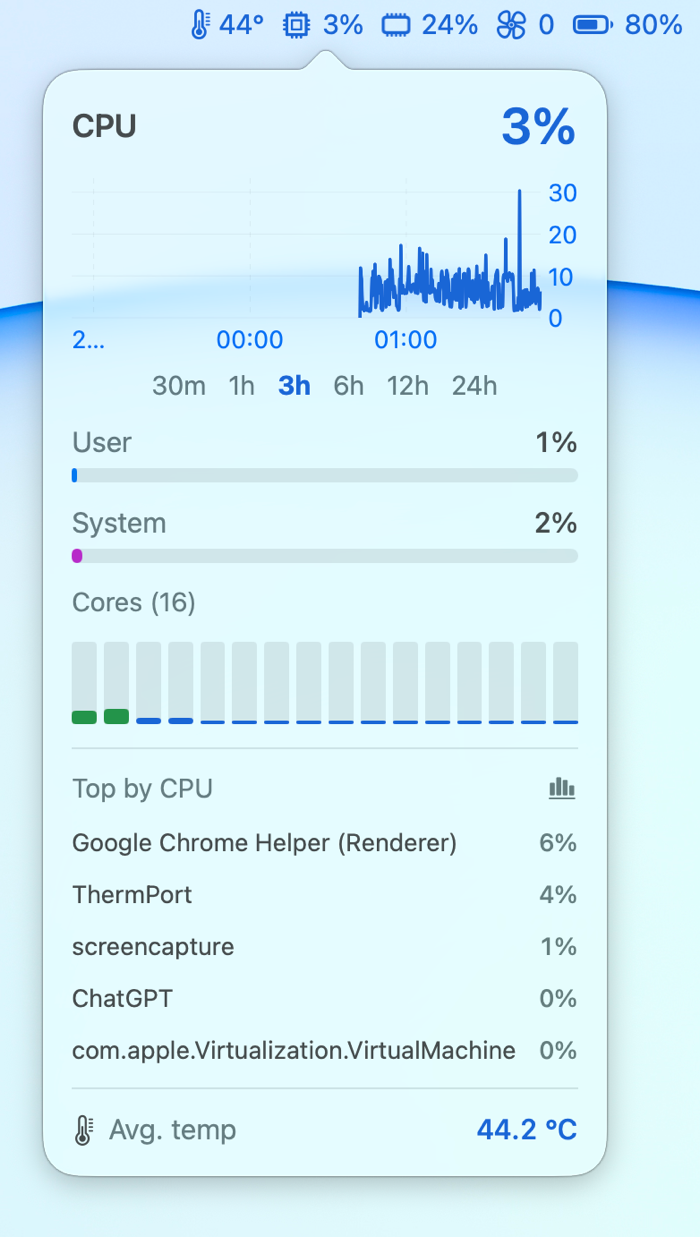
If CPU_Speed_Limit is below 100, the Mac is hot enough that macOS is slowing the CPU down. A menu bar monitor that shows temperature, fan speed and the top processes together makes this faster, but Activity Monitor is enough to start.
The ten usual causes
1. One runaway app or browser tab
The most common cause by far. A web page with a broken script, a video call, an Electron app that has been open for days. Activity Monitor shows it at the top of the list. Quit it, or in the case of a browser, close tabs until the number drops. Chrome and Safari both have their own task managers that show which tab is responsible.
2. Spotlight indexing
After a macOS update, a migration from an old Mac, or copying a large folder, Spotlight re-indexes the drive. The processes are mds_stores, mdworker and mds. It finishes on its own, typically within a few hours. If it never finishes, exclude the busy folder in System Settings → Spotlight → Search Privacy, or rebuild the index with sudo mdutil -E /.
3. Photos, Time Machine, iCloud and cloud sync
photoanalysisd scans a new photo library for faces and objects. backupd is Time Machine. bird and cloudd are iCloud. Dropbox, OneDrive and Google Drive each have their own sync process that can run hard after a large change. All of these are legitimate and temporary. Let them finish while the Mac is plugged in, ideally overnight.
4. kernel_task at the top of the list
This one confuses everyone. kernel_task showing hundreds of percent CPU is macOS deliberately occupying the CPU so your apps cannot heat the chip further. It is the thermostat, not the heater. Treat it as a sign that something else is producing heat: another process, blocked vents, a warm room, or on older Intel MacBooks, charging through the ports on the left side.
5. External displays at a scaled resolution
Running a 4K or 5K display at a "looks like" resolution that is not its native one makes the GPU render a much larger frame and scale it down, all day, every frame. It is one of the biggest silent sources of heat on a MacBook with an external monitor. In System Settings → Displays pick the default resolution for the display, or one that is an exact 2x of the panel. Two or three displays multiply the effect.
6. Charging while working hard
Charging adds heat on its own, and the charger brick does too if it sits under the Mac. Fast-charging a nearly empty battery while exporting video is the worst case. If the Mac is hot, charge it during lighter work, and turn on Low Power Mode in System Settings → Battery when you do not need full performance; it caps heat as well as drain.
7. Blocked vents and soft surfaces
MacBook Pro intakes are near the hinge and along the sides. A bed, a couch, a thick tablecloth or a lap blocks them. Clamshell mode (lid closed, external display) also reduces cooling because the keyboard area no longer radiates heat. Put the Mac on a hard flat surface, or a stand, and open the lid an inch in clamshell setups if it runs hot.
8. Dust
Fan-cooled models collect dust in the fan blades and heat sink fins over a couple of years. The symptom is fans that run faster than they used to for the same work. Compressed air through the vents helps; a proper clean-out requires opening the bottom case. Fanless MacBook Air models are immune to this one.
9. A hot room
Apple rates MacBooks for ambient temperatures up to 35 °C. In a room near that, or in direct sunlight, the Mac starts from a much higher baseline and reaches its limit sooner. Nothing is wrong; it is physics. Shade, airflow, or a cooler room are the only fixes.
10. Software you did not intend to run
Rare, but worth ruling out: a process you do not recognize that is always busy. Check System Settings → General → Login Items for things that start automatically, and look up any process name you do not know. Cryptocurrency miners hidden in pirated software are the classic case.
When it might be hardware
- Fans at maximum speed while Activity Monitor shows the CPU almost idle and the Mac is cool to the touch: a fan or sensor fault.
- A monitoring app shows a fan at 0 RPM while the temperature climbs past 100 °C under load on a MacBook Pro: the fan may have failed.
- The Mac shuts down or restarts under load: run Apple Diagnostics (shut down, hold the power button until startup options appear, then press Command-D).
Keep an eye on it afterwards
Once you have found the cause, a menu bar monitor tells you if it comes back without opening Activity Monitor every time. Stats and Hot are free and open source, iStat Menus is the long-running paid option, and our own ThermPort shows temperature, fan speed, CPU and the top processes in the menu bar in about 15 MB, with a history chart so you can see when the heat started and what you were doing at the time.
Frequently asked questions
Is it bad for my MacBook's fans to run loud?
No. Loud fans mean the Mac is hot and cooling itself as designed. They are a symptom to investigate, not a problem in themselves. Fans running at full speed with nothing open is what deserves attention.
Why are the fans loud when nothing is open?
Something is running in the background: Spotlight indexing, a Photos library scan, a Time Machine backup, iCloud or a cloud sync client, or a stuck process. Activity Monitor's CPU tab, sorted by % CPU, shows which.
Why is kernel_task using so much CPU?
kernel_task is macOS reserving CPU time to lower the temperature. It is the operating system throttling on purpose, so look for what is heating the Mac, including blocked vents and a hot charger, rather than trying to quit it.
Does a cooling pad help a MacBook?
A little, mostly by lifting the Mac off the surface so the intakes can breathe. A simple stand does most of the same job. Neither will change how a fanless MacBook Air behaves under a long heavy load.

ThermPort puts CPU temperature, fan speed, memory, power and more in your Mac's menu bar in a 15 MB app. 14-day free trial, one-time purchase, Apple Silicon only.
Learn more